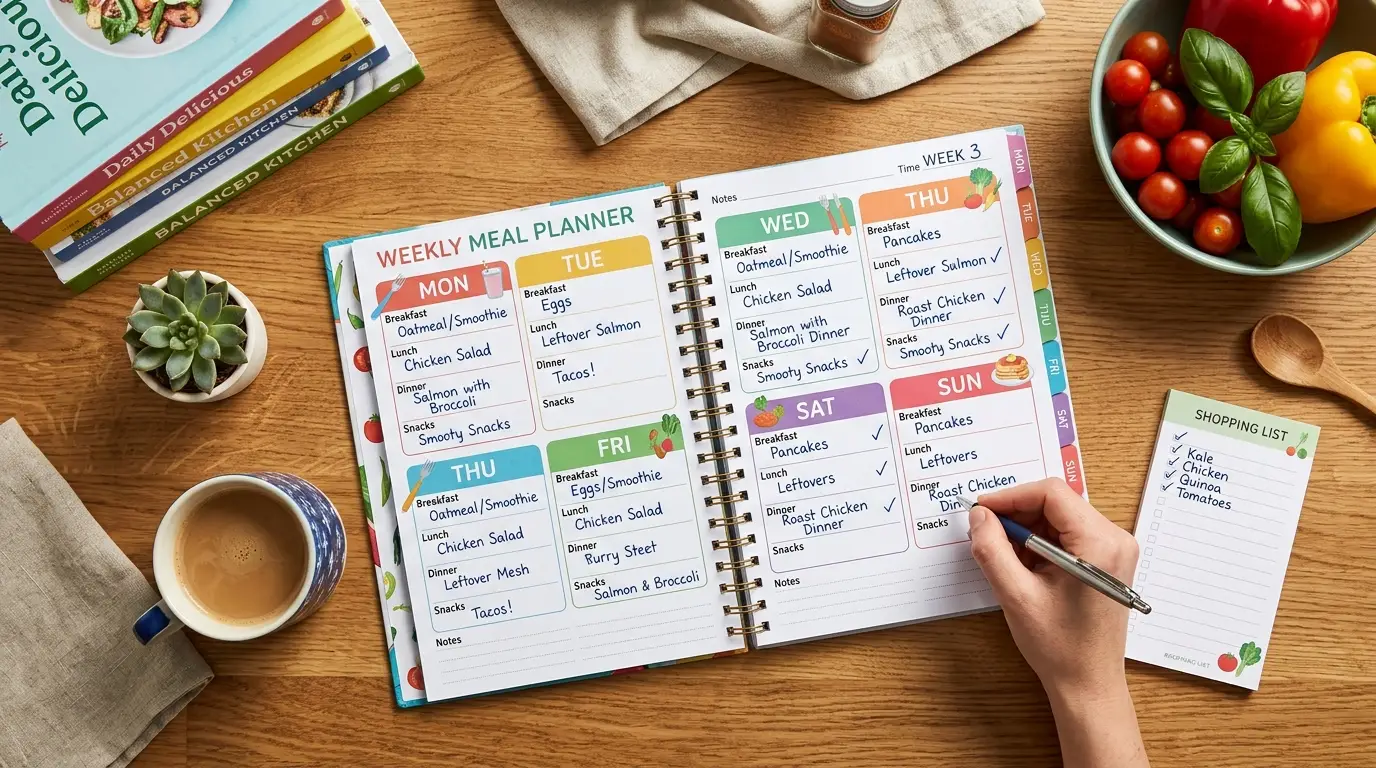
Meal planning is one of those habits that sounds like a lot of work but, done right, actually saves you time — less daily decision-making, fewer emergency supermarket runs, and noticeably less food waste. DishBoard’s meal planner is designed to handle the grunt work so you can focus on the cooking (or not cooking, on the nights you’ve planned something simple).
This guide walks you through everything: generating a plan, customising it, building a grocery list, and saving plans to reuse.
Getting to the Planner
From anywhere in DishBoard, click Meal Planner in the navigation bar. You’ll land on the planner page, which shows a full 7-day grid with slots for Breakfast, Lunch, and Dinner.
If it’s your first visit, the planner will auto-generate a week of recipes immediately. It picks from your full recipe collection and assigns appropriate meals to each slot — breakfast recipes to breakfast slots, main course and dinner recipes to dinner slots, and so on.
Understanding the Three Views
The planner has three layout options in the top-right corner:
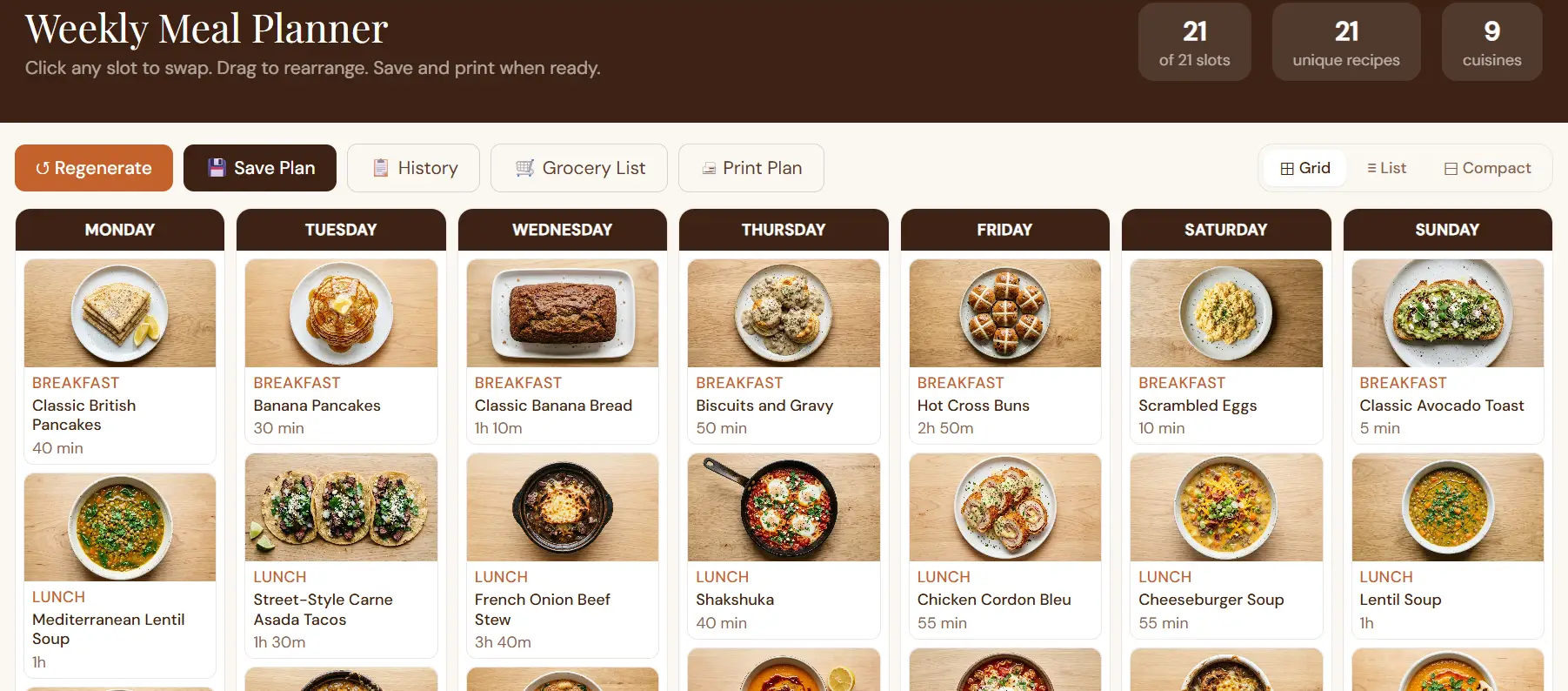
Grid View
The default. Seven day columns across the top, three meal rows down. You can see your whole week at a glance. Best on desktop.
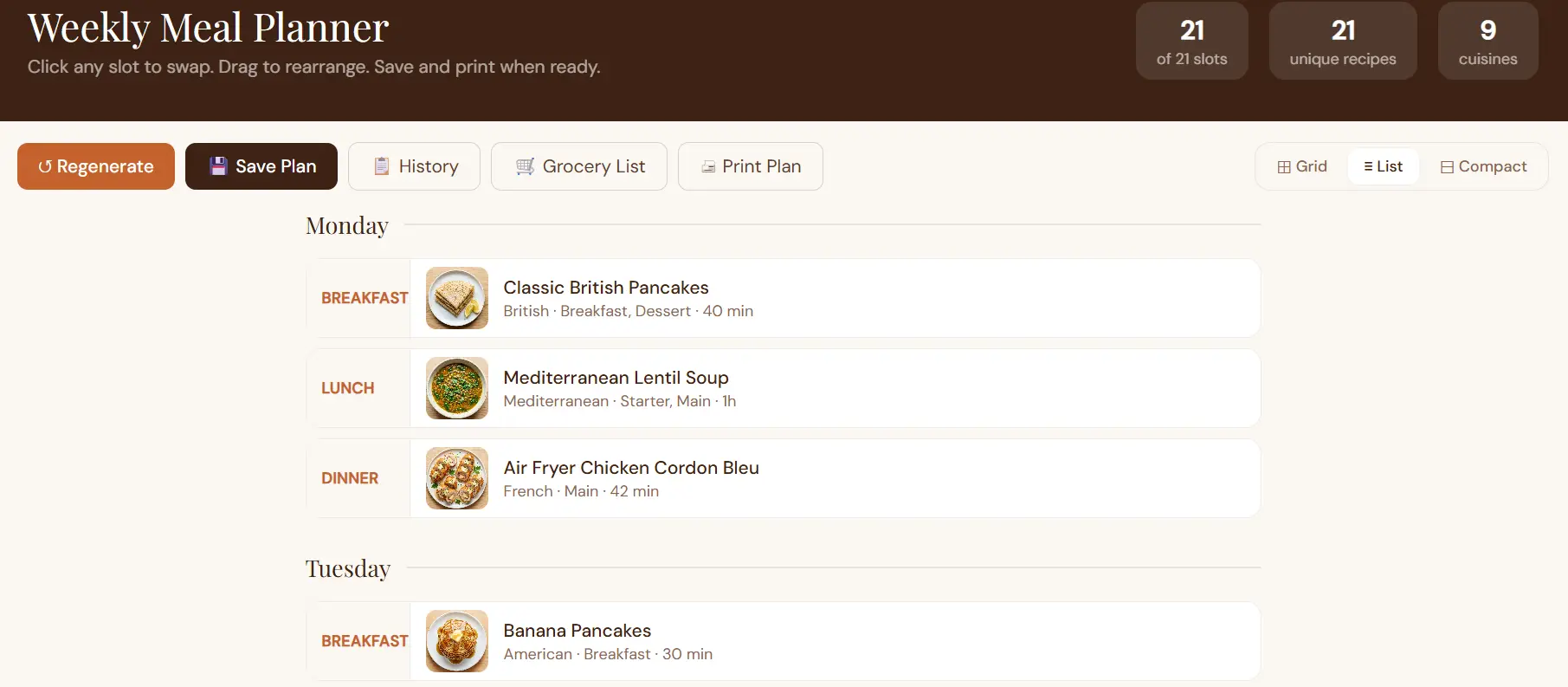
List View
Days stacked vertically, each with three meal rows. More readable on mobile and easier for scrolling through the full week without horizontal scrolling.
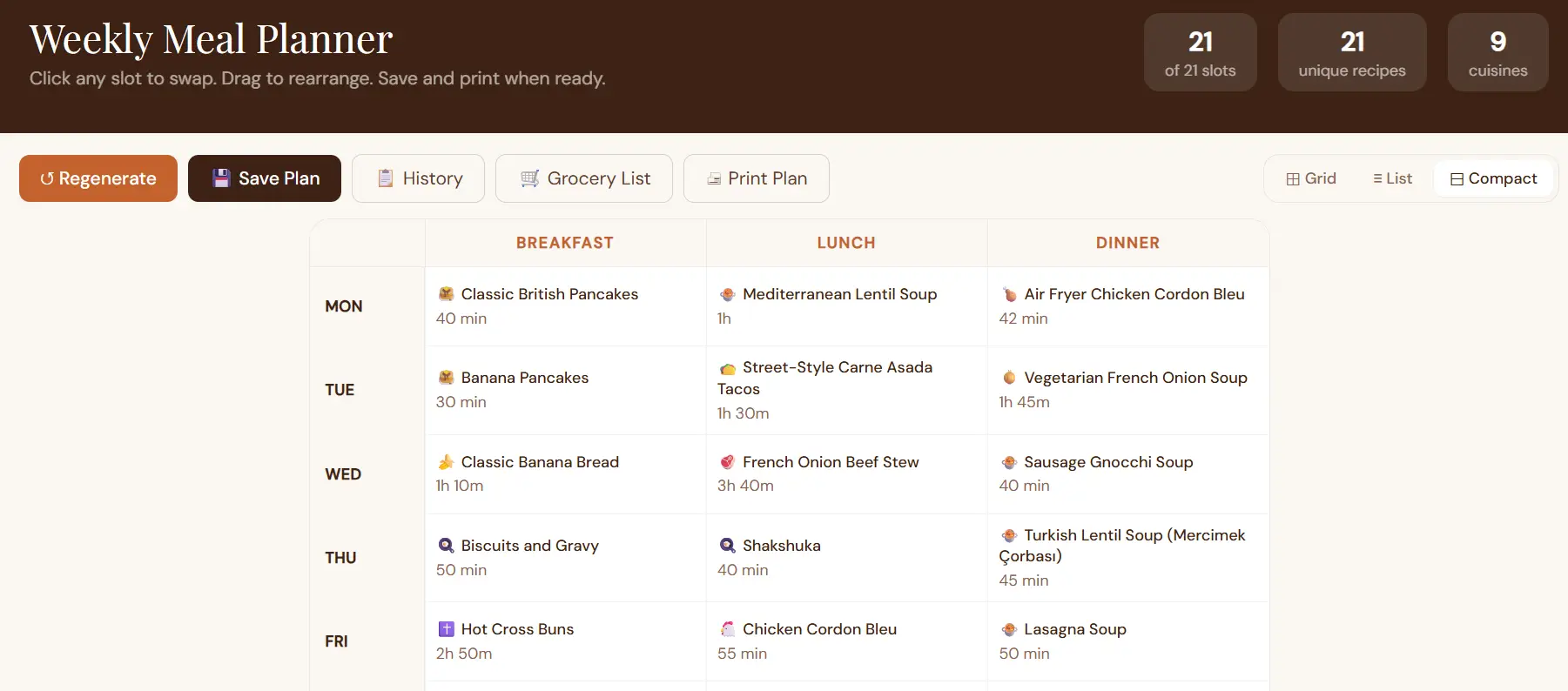
Compact View
A tighter table with meals as columns and days as rows. Good for a quick overview when you just need to check what’s planned.
Regenerating the Plan
Hit ↺ Regenerate at any time to get a completely fresh plan. DishBoard shuffles the recipe pool and reassigns meals randomly.
If you see a yellow warning saying a meal type has limited variety, that means you have fewer than 7 matching recipes for that meal type — so some recipes will repeat across the week. Adding more recipes to the collection is the fix.
Swapping Individual Recipes
Not happy with a specific slot? Click on any recipe card (or the empty ”+ Add” slot) to open the recipe picker.
The picker shows recipes that are appropriate for that meal by default — breakfast and brunch recipes for breakfast slots, mains and soups for lunch, dinner and mains for dinner. If you want to pick something outside those suggestions, just start typing in the search box — it opens up the full recipe collection.
Click Select → on any recipe to drop it into that slot.
Clearing a Slot
Hover over any filled recipe card and click the × button that appears in the top-right corner of the card to clear that slot.
Building Your Grocery List
Once your plan looks good, click 🛒 Grocery List in the action bar. This takes you to a dedicated shopping list page that:
- Aggregates every ingredient across all 21 meals
- Groups items by category (produce, meat, dairy, etc.)
- Lets you tick off items as you shop
- Includes Amazon purchase links for specialty items
The list persists across page refreshes so you can close the tab and come back to it mid-shop.
Saving Plans
Click 💾 Save Plan to store the current plan in your browser. Give it a name (optional) — something like “Low-effort week” or “Holiday cooking” — or save with the auto-generated date.
Saved plans are stored locally in your browser (no account needed). You can save up to 20 plans.
Plan History
Click 📋 History to see all your saved plans. The badge number shows how many you’ve saved. From the history drawer you can:
- Load This Plan — restores that week to the current planner, overwriting whatever is there
- 🗑 Delete — permanently removes the saved plan (asks for confirmation first)
Printing the Plan
Click 🖨 Print Plan to open your browser’s print dialog. DishBoard renders a clean, print-optimised layout that includes:
- The full weekly meal grid
- A list of all unique recipes for the week
- A notes section for jotting down prep reminders
Tips for Getting the Most Out of It
Plan around your week, not an ideal week. If Wednesday is always hectic, slot a slow cooker recipe that requires 10 minutes of morning prep and then looks after itself.
Use the regenerate button freely. It’s random, so a fresh plan in 5 seconds is always just one click away. Don’t agonise over the first result.
Save plans you like. If a particular week worked well for your household, save it with a name and reload it in a future week rather than starting from scratch.
Check the grocery list before shopping. The aggregated list catches duplicates and collates quantities across all recipes — much faster than reading each recipe individually.
Head to the Meal Planner to get started.
Share this post